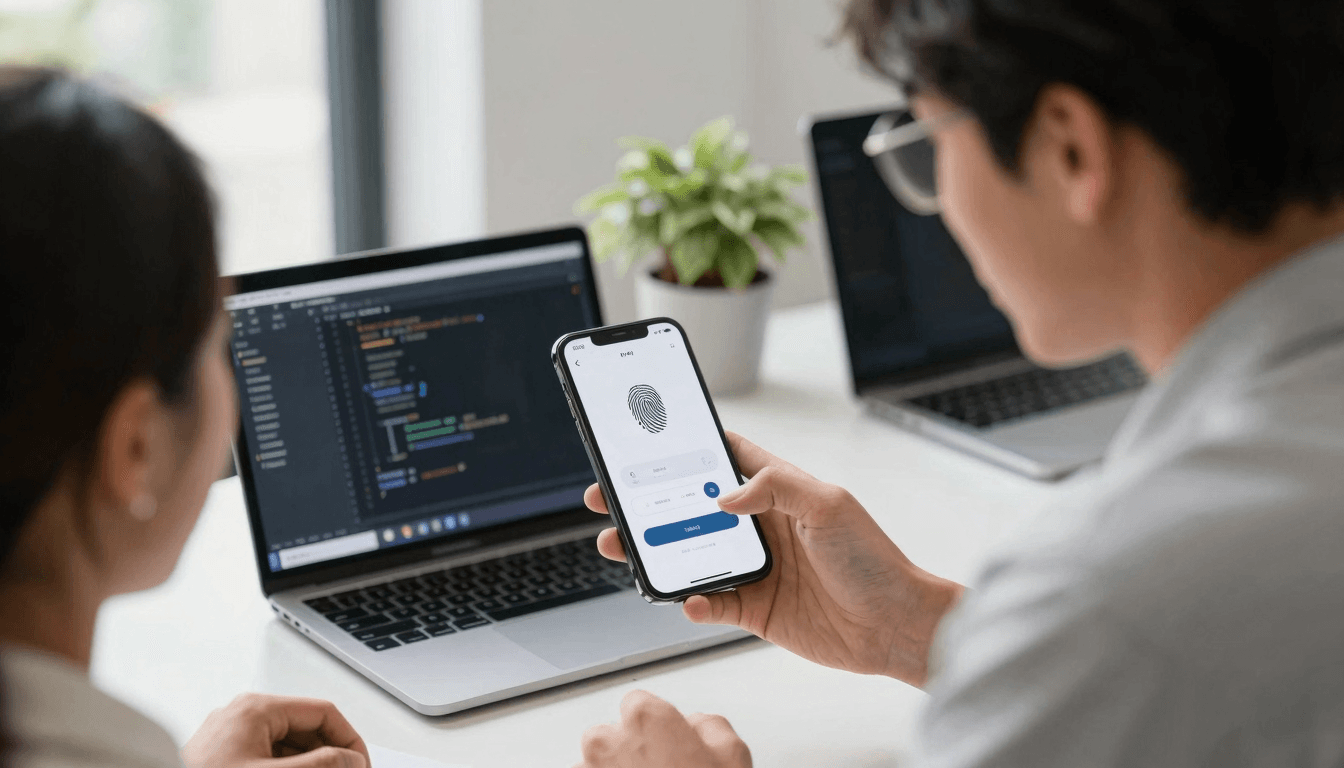
The Biometric Login Problem: Designing Face ID and Touch ID Flows Users Actually Trust
You build a login screen, ship it, and three days later your analytics show a quiet but consistent leak: returning users open the app, stare at the lock screen for a beat, and a chunk of them just... close it. They're not lost on your onboarding flow or confused by your sign-up form — they already made an account. They're getting stuck on the door they should be able to walk through in under a second. If you've ever debugged this exact drop-off, the culprit is usually biometric login: the Face ID or Touch ID flow that either builds trust in half a heartbeat or quietly trains users to distrust your app every time they open it. At Dolfy, this is one of the recurring "it looked simple in the mockup" problems founders run into once real devices are involved, and it's exactly the kind of pattern Dolfy.ai's Design OS methodology is built to catch before a single line of code gets written.
Biometric login is deceptively small in scope — one Face ID prompt, maybe a fallback button — but it touches permissions, security copy, error states, and platform-specific hardware behavior all at once. Get the permission timing wrong and iOS shows a scary system dialog before the user trusts your app. Get the fallback missing and a single failed scan strands the user completely. Get the copy wrong and users start disabling biometrics out of suspicion rather than convenience. None of this is exotic — it's just a lot of small decisions that rarely get the design attention they deserve.
Key Takeaways
- Face ID typically authenticates in roughly 20-30 milliseconds once the face is captured, but the surrounding UI (permission requests, fallback timing, error states) is where almost all the perceived slowness and confusion actually comes from.
- Apple allows up to 5 failed Face ID attempts before forcing a passcode fallback; Android's BiometricPrompt API gives a similar grace window — your UI needs a visible fallback path well before that limit, not just at it.
- Requesting Face ID or Touch ID permission cold, on first launch, produces meaningfully worse opt-in rates than asking after the user has already seen value in the app — the same "delayed ask" principle that applies to camera and location permissions applies here too.
- A biometric login screen needs at least three states designed up front: scanning, success, and a graceful fallback to PIN or password — most teams only design the first one.
- Dolfy's Design OS treats auth states like this as part of the Data Model and Screen Design steps, not an afterthought bolted on during development, which is why the fallback states actually exist by launch day.
Why does Face ID feel slow even though it's technically instant?
The scan itself is fast — Apple's Face ID hardware typically completes recognition in a few tens of milliseconds, and Touch ID is comparably quick. The perceived slowness almost always comes from what wraps around that moment: a full-screen loading spinner that outlasts the actual scan, a jarring transition into the home screen, or — worse — an ambiguous middle state where the user isn't sure if the scan succeeded, failed, or is still processing. If your biometric prompt takes longer to render its own UI than the underlying hardware takes to authenticate, the feature reads as slow even when it isn't.
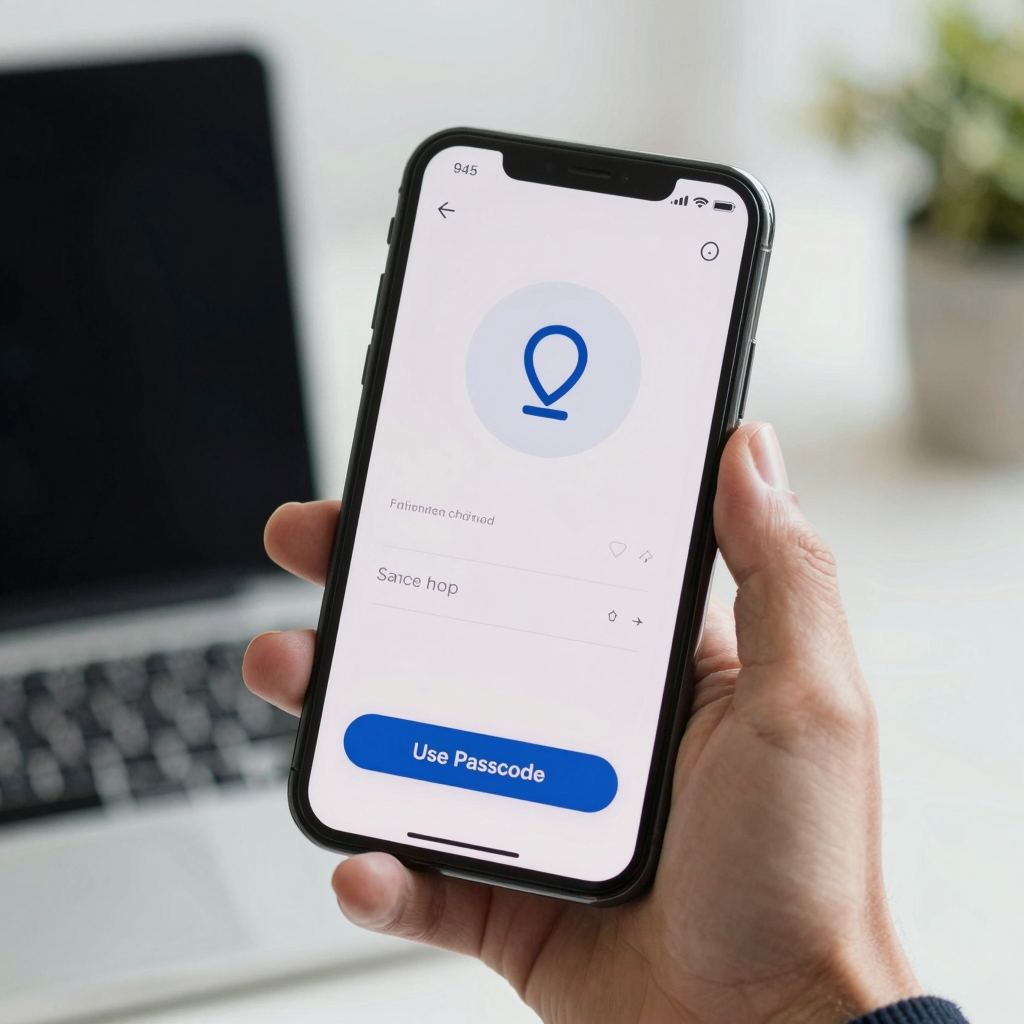
The fix is almost entirely about state design rather than performance engineering. A clean flow shows the biometric prompt immediately on screen load (not after a delay), transitions instantly on success with a brief, deliberate confirmation animation rather than an abrupt cut, and — critically — shows a visible "Use Passcode Instead" or "Enter Password" option from the very first attempt, not just after multiple failures. Dolfy's Screen Design step generates these three states — scanning, success, fallback — as first-class screens in the design token system, with consistent spacing, color, and motion timing, so a developer isn't inventing the failure state from scratch at 4pm before a release.
When should you actually ask for biometric permission?
You should ask after the user has logged in successfully at least once with a password, not on their very first screen. Asking cold — before someone has any reason to trust your app with their face or fingerprint data — tends to produce lower opt-in and higher long-term distrust than asking once the user already has a positive first impression. This mirrors a pattern well documented for other sensitive permissions like camera and location access: the request that comes with context ("Enable Face ID to skip typing your password next time") converts meaningfully better than the same request fired the moment the app opens.
Practically, this means your data model needs to track more than just "hasBiometricsEnabled: boolean." A well-structured flow tracks whether the user has been offered biometrics at all, whether they declined it (so you don't nag them every session), and whether the device's biometric hardware is even available and enrolled — a phone with no Face ID configured needs a completely different UI branch than one that has it ready. This is a small data modeling decision, but it's exactly the kind of thing Dolfy's Data Model step forces founders to define before jumping into screens, because retrofitting these fields after the UI is already built usually means a rebuild, not a patch.
What should the fallback flow actually look like?
The fallback should be visible, not hidden behind a failure. A common mistake is only showing a "use password instead" link after Face ID has already failed once or twice — which means users who simply don't have their face positioned right, or who are wearing a mask, or whose phone is in a dark room, sit through an awkward failed-scan animation before they even see an alternative. Best practice is to show both the biometric prompt and a visible, always-available fallback button on the same screen from the start, so neither path feels like a punishment for the other failing.
Beyond the button itself, the fallback screen needs the same design polish as the primary path: clear labeling ("Enter your password" rather than a bare input field), a visible "Forgot password?" link, and — this gets skipped constantly — a way back to biometric login if the user taps fallback by accident. Teams building this manually in Figma often design the happy path beautifully and leave the fallback as a bare, unstyled form. Dolfy's component export generates both states from the same design tokens — the color palette, spacing scale, and typography that keep every screen visually consistent — so the fallback screen doesn't look like it was built by a different team six months later.
How does this differ across React Native, Flutter, and native iOS/Android?
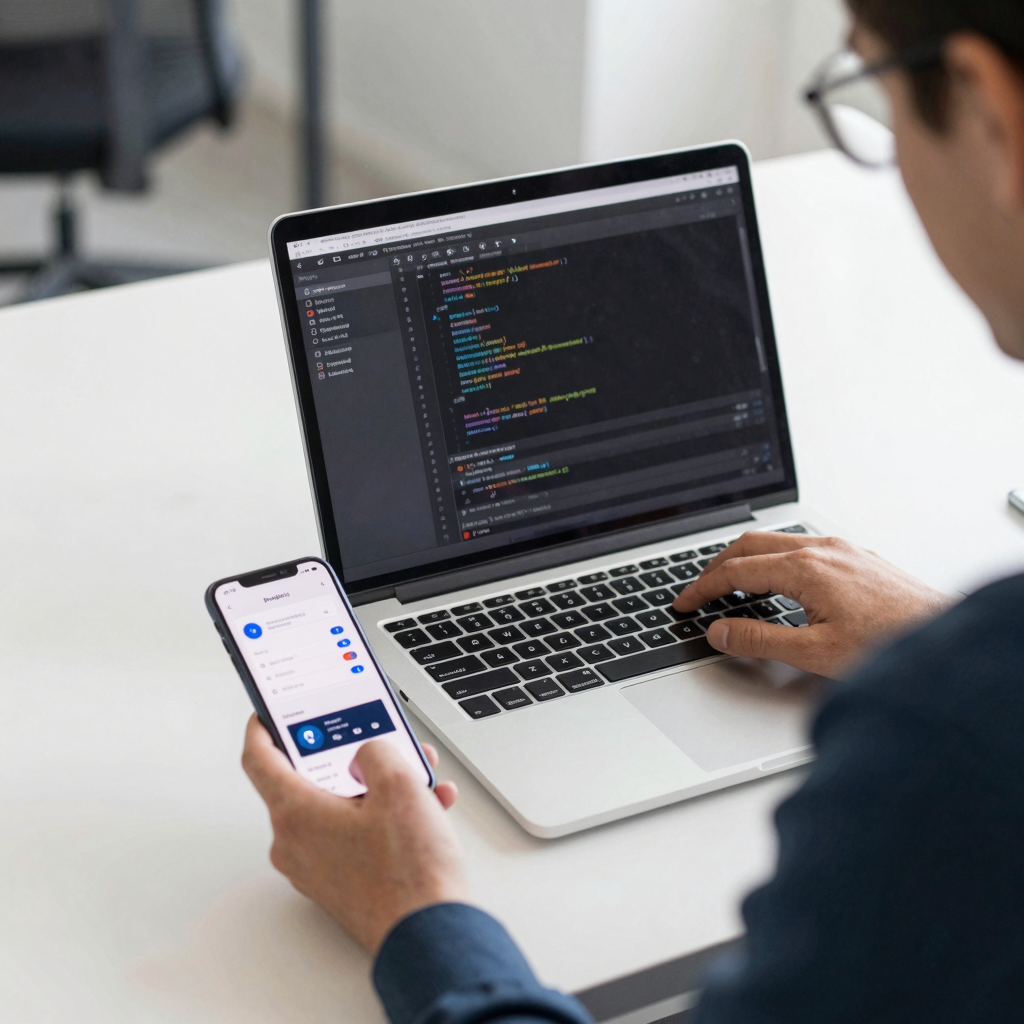
The underlying behavior is broadly similar, but the implementation details differ enough to matter. On native SwiftUI, Face ID is handled through Apple's LocalAuthentication framework with fairly tight system-level control over prompt copy and timing. React Native apps typically reach for a library like react-native-biometrics or expo-local-authentication, which wrap the native APIs but still require you to hand-build the surrounding UI states yourself — the library gives you a yes/no result, not a designed screen. Flutter's local_auth package follows a similar pattern. In every case, the framework solves "can this device authenticate," not "what does the user see while it happens" — that part is still entirely a design and UX problem, regardless of stack.
This is where a lot of indie teams lose time: they wire up the authentication library correctly in an afternoon, then spend days iterating on loading states, error copy, and fallback screens because nobody defined those states before development started. Dolfy exports React Native and Expo-compatible component code with TypeScript types already covering these states — authState: 'idle' | 'scanning' | 'success' | 'failed' | 'fallback' as an example shape — so the developer implementing the LocalAuthentication or expo-local-authentication call already has the UI contract to build against, rather than guessing at it mid-sprint.
Frequently Asked Questions
Does adding biometric login actually improve retention?
It removes friction from every single return visit, which compounds over time — users who don't have to retype a password are less likely to abandon the app at the login screen. The retention impact depends heavily on how well the fallback and permission-timing are handled; a poorly designed biometric flow can create more friction than the password screen it replaced.
Should biometric login be mandatory or optional?
Optional, always. Some users disable Face ID system-wide for privacy reasons, some devices don't support it, and forcing it as the only login path will lock out a meaningful slice of your users. Password or PIN fallback should remain a fully functional, permanent login method, not a temporary workaround.
What's the difference between biometric login and biometric-gated actions (like confirming a payment)?
Biometric login authenticates identity to get into the app; biometric-gated actions re-confirm identity for a specific sensitive action, like approving a transaction. They often reuse the same underlying APIs but need separate UI treatment — a payment confirmation prompt should look and feel more deliberate and slower-paced than a routine app-open login.
How many failed attempts before showing the fallback automatically?
Design for the fallback to be visible from attempt one rather than triggered automatically after a failure count — but if you do want an automatic hand-off, most teams switch to the passcode/password prompt by the second or third failed scan, well before Apple's system-level 5-attempt lockout kicks in.
Designing Auth Flows That Earn Trust, Not Just Convenience
Biometric login is one of those features that looks like a single checkbox — "enable Face ID" — but is really a small system of permission timing, state design, and fallback logic that either builds user trust or quietly erodes it every time someone opens your app. The technical scan takes milliseconds; the design decisions around it determine whether that speed actually gets felt. Teams that treat this as a real design problem, not just a library integration, end up with login flows that feel instant and dependable instead of ones that occasionally strand a user with no way back in.
If you're building this into a new app and don't want to reinvent the scanning, success, and fallback states from scratch, Dolfy's 5-step Design OS — Product Definition, Data Model, Design Foundation, Screen Design, and Export — walks you through exactly this kind of decision before you write any code, producing production-ready React Native and Tailwind CSS components with the design tokens and TypeScript types already wired for states like these. You can try it out and preview your own screens in Expo Go or the web preview at Dolfy.