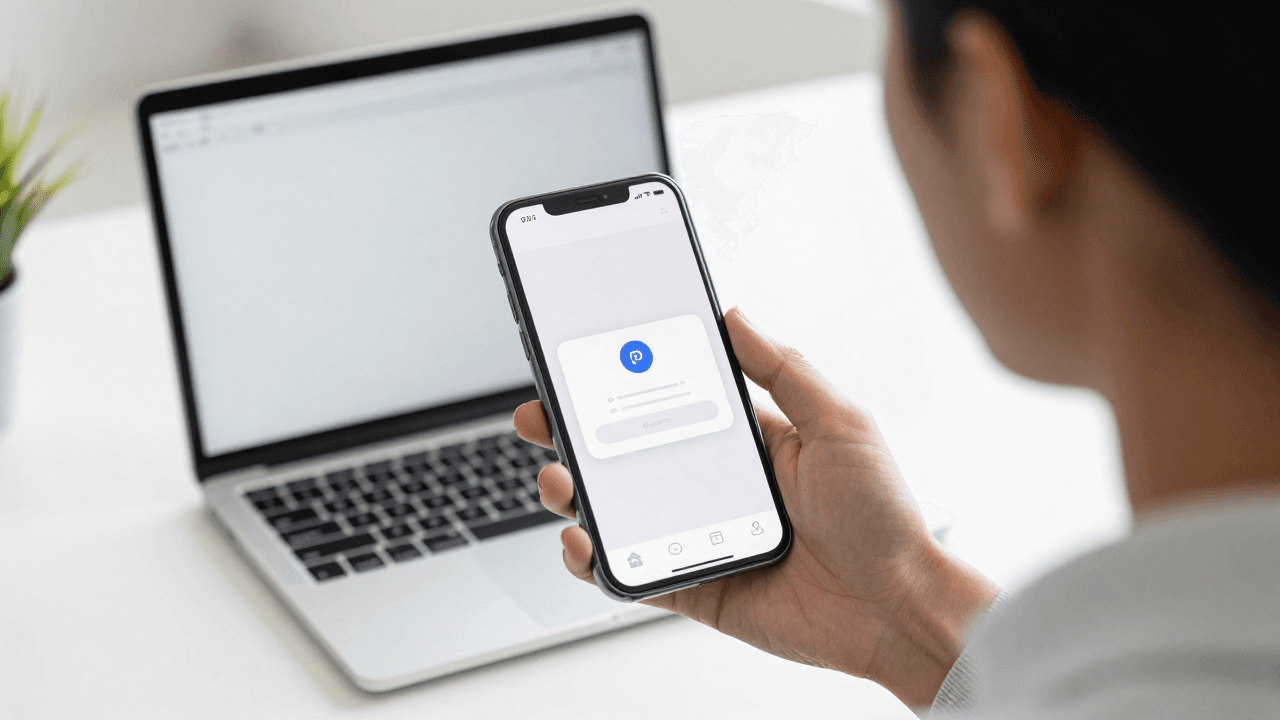
The Permission Prompt Problem: Why Your App's Notification Dialog Gets Denied Before Users See Any Value
You spent three weeks polishing your onboarding flow. The very first thing a new user sees after installing your app is a system dialog asking to send notifications, and about half of them tap "Don't Allow" before they have seen a single screen of your product. On iOS you cannot ask again. Dolfy.ai sees this pattern constantly with first-time founders: the permission request is treated as a technical checkbox instead of a design moment, and the cost is a channel you can never fully win back.
Key Takeaways
- A system permission dialog (the native pop-up your phone's operating system shows) can only be shown once on iOS, so the moment you trigger it is a one-shot decision.
- Asking before the user understands the value is the number one reason permissions get denied.
- A "pre-permission" screen of your own design lets you explain the benefit and skip the system dialog if the user says no.
- A denied permission needs a graceful fallback and a clear path to the phone's Settings app.
- Treat every permission prompt as a designed screen with its own states, not as a line of code.
Why do users deny notification permission so often?
Users deny permission because the request arrives before they have any reason to trust the app. Industry figures commonly put iOS notification opt-in rates somewhere around 50 to 60 percent when the dialog is shown cold on first launch, which means roughly four in ten people close the door immediately. The dialog itself says almost nothing: it names your app and asks to "send you notifications," with no hint of what kind, how often, or why.
Compare that to the moment a user has just created their first project and sees a card reading "Get a heads-up when your export is ready." The same system dialog now follows a concrete benefit. Nothing about the technology changed; only the timing and the explanation did. The lesson is that the system dialog is the last step of the permission flow, not the first.
What is a pre-permission screen, and why does it work?
A pre-permission screen is a screen or card you design yourself that appears before the operating system's dialog. Its job is to explain, in one sentence, what the user gets by saying yes, and to offer two buttons: "Turn on" and "Not now." Only "Turn on" triggers the native dialog.
This works for a simple reason. Tapping "Not now" on your own screen is free: it does not burn your single chance at the system prompt, and you can show the pre-permission card again later, in a better context. Tapping "Don't Allow" on the system dialog is permanent on iOS until the user digs through Settings. A pre-permission screen turns an irreversible decision into a reversible one.
A good pre-permission screen has four parts:
- A short headline stating the benefit, not the feature ("Know the moment your order ships").
- One line describing how often you will send messages ("About two a week").
- A primary button that triggers the real dialog.
- A clearly visible secondary button that dismisses without guilt.
When is the right moment to ask for each permission?
The right moment is immediately after the user performs an action that makes the permission obviously useful. Notifications make sense after the user sets a reminder or follows something. Camera access makes sense when they tap "Scan." Location makes sense when they open a map or "near me" list. Contacts make sense when they tap "Invite friends."
This is called a contextual ask (requesting a permission at the moment its purpose is self-evident). The alternative, a stack of three or four permission dialogs on the very first launch, is the pattern most likely to produce a wall of denials. Users have no context, no trust, and no way to tell which request matters.
A practical rule for solo founders: list every permission your app uses, and next to each write the exact user action that justifies it. If you cannot name that action, you probably do not need the permission yet. Fewer permissions also help with App Store and Google Play review, where unexplained requests are a common reason for rejection.
How should your app behave after a user says no?
Your app should keep working and make the denial recoverable. The first requirement is a fallback: if notifications are off, show an in-app inbox or a banner so the user still sees the information. If location is off, let them type a city instead. If the camera is off, offer photo-library upload.
The second requirement is a path back. When the user later taps a feature that needs the permission, show a small explanation card with a button that opens the phone's Settings page for your app. React Native exposes this with a single call to open the app settings, and Expo wraps the permission APIs so that you can read the current status (granted, denied, or undetermined) before deciding what to show.
Three states matter, and each needs its own design:
- Undetermined: the user has never been asked. Show the pre-permission screen.
- Granted: show the feature normally.
- Denied: show the fallback plus a gentle "Open Settings" prompt, never a nagging pop-up.
Most apps design only the granted state. That is why denied users so often meet a blank screen or a spinner that never finishes.

How do you design permission flows as part of your screens?
You design them as ordinary screens, with the same design tokens (named, reusable values for color, spacing, and typography) as everything else. The pre-permission card should use the same corner radius, the same button styles, and the same spacing scale as your other cards, so it feels like part of the product rather than an interruption.
This is where a structured workflow helps. Dolfy guides you through a five-step Design OS methodology: Product Definition, Data Model, Design Foundation, Screen Design, and Export. Permissions fit naturally into two of those steps. During Product Definition you decide which capabilities the app needs. During Screen Design you lay out the screens for each state of each capability, so the undetermined, granted, and denied versions exist before a developer touches the code.
When you export, Dolfy produces production-ready React Native components styled with Tailwind CSS and typed with TypeScript, so a permission card built from your design tokens arrives as a reusable component rather than a one-off. You can check the result on a real phone through Expo Go or in the Web Preview before committing to anything. Compare that with sketching dialogs in Figma or Sketch and then hoping the developer interprets the denied state the way you intended.
A simple checklist before you ship
Run through this list on a real device, ideally with a fresh install, because simulators remember previous answers:
- Does each permission request follow an action that explains it?
- Is there a pre-permission screen with a free "Not now" option?
- Does every feature have a working denied-state fallback?
- Can a user who denied a permission find the Settings shortcut within two taps?
- Have you tested the flow after granting, denying, and revoking permission from system Settings?
Allow about half a day for this audit on a small app. It is cheap compared to the cost of acquiring users who then can never be reached again. If you retain even 10 more people out of every 100 installs with notifications on, the lifetime value of those users is typically several times higher, since engaged users with push enabled tend to return more often.
Frequently Asked Questions
Can I ask for permission again after the user denies it on iOS?
No, not with the system dialog. After a denial, iOS will not show it again for that app, so the only route is to send the user to the Settings page for your app. This is exactly why a pre-permission screen is so valuable: it protects your one chance.
Should I ask for notification permission on first launch?
Usually not. Unless notifications are the core of your product, wait until the user has completed a meaningful first action. Android 13 and later also requires a runtime notification permission, so the same timing advice now applies on both platforms.
How many permissions is too many?
Aim to request only what a feature needs at the moment it needs it. If a first-time user hits more than one system dialog in their first session, you are probably asking too early. Fewer, well-timed requests build trust and get higher acceptance.
Do I need a designer to build these flows?
No. A permission flow is a handful of cards and states, which a technical founder can lay out with a structured tool and a consistent token system. The key is deciding the states in advance rather than discovering them during testing.
Earn the "Yes" before you ask for it
Permissions are a conversation, not a toll booth. Explain the benefit, let people say "not yet," and keep the app useful when they do. If you want to design every state of your permission flow, and the rest of your screens, before writing a line of code, take a look at Dolfy and see how the Design OS turns that plan into components you can run on your phone the same day.