
Why Your React Native App Feels Sluggish
Your app may not be “slow” in the way a profiler defines slow. It may be visually inconsistent, structurally messy, and expensive to change. When React Native UI components are built screen by screen instead of as a coherent system, the app can feel sluggish to users and to the team maintaining it. Dolfy.ai approaches this problem from the design-to-code side: it helps teams move through a structured Design OS before export, so the React Native work starts from cleaner UI decisions instead of scattered mockups.
React Native performance still matters. You should profile release builds, remove unnecessary JavaScript work, and test on real devices. But many teams reach for runtime tuning too late. The UI already feels heavy because the product has no shared component language.
Key takeaways
- A sluggish-feeling React Native app is often a system problem before it is a code problem.
- React Native targets smooth interaction at 60 frames per second, which leaves about 16.67 milliseconds for each frame on a 60 Hz display, according to the official React Native performance guide.
- React Native’s own docs warn that development mode adds runtime work, so meaningful performance judgment should happen in release builds.
- Expo’s start-developing guide notes that
npx expo startshows a QR code for opening the app on a device, which makes early on-device UI review practical. - Expo’s New Architecture guide says SDK 55 and later run entirely on React Native’s New Architecture, and that about 83% of SDK 54 projects built with EAS Build were using it as of January 2026.
Why can a React Native app feel sluggish even when it technically runs?
A React Native app can feel sluggish because users experience the whole interface, not just the measured frame rate. If spacing changes from screen to screen, buttons behave slightly differently, loading states appear unpredictably, and navigation surfaces inconsistent layouts, the app feels slower than it may actually be.
Plainly defined: perceived performance is how fast the product feels to a person. Runtime performance is how fast the app actually executes work. Both matter, but they are not identical.
This distinction is important for founders and developers because React Native makes it easy to build UI quickly. You can assemble a screen, ship it, and move on. That speed is useful early, but it becomes a liability when every new screen introduces a new button variant, a new card layout, a new spacing exception, and a new conditional rendering pattern.
Users do not know that the problem is “component drift.” They notice that the app hesitates, jumps, or feels less polished than native apps they use every day. Developers notice the same issue differently: changing one flow requires touching five components, testing six edge cases, and explaining why two nearly identical screens are not actually using the same structure.
React Native’s official performance documentation gives a useful baseline: smooth UI often means hitting 60 frames per second, or about 16.67 milliseconds per frame on a 60 Hz display. If the app misses that budget, frames can drop and the interface can feel unresponsive. But an app can also make that budget harder to hit by constantly asking React Native to reconcile inconsistent, over-customized UI trees.
How do inconsistent React Native UI components create UI debt?
Inconsistent React Native UI components create UI debt by turning every product change into a local exception. The problem starts small: one screen needs a special card, another needs a slightly different input, a third needs a button with custom padding because the design was rushed.
Plainly defined: UI debt is the hidden cost of interface decisions that are easy today but expensive later. It is similar to technical debt, except the cost appears in components, visual rules, interaction patterns, and design-code alignment.
In React Native, UI debt often appears in four places.
First, component boundaries are unclear. A “Card” component handles layout, data formatting, loading state, typography, and navigation. That makes it hard to reuse without dragging unrelated behavior into the next screen.
Second, variants are implicit. Instead of a button API such as variant="primary" or size="compact", teams copy a button and tweak styles directly. The app gets faster to prototype but slower to evolve.
Third, screen-level styling overrides component-level intent. Tailwind CSS utilities can be highly productive in React Native workflows, but without rules, they can also become a pile of one-off classes. Tailwind is not the problem. Lack of a design system is.
Fourth, TypeScript types lag behind design decisions. When a component accepts loose props, unsupported states creep in. A component might technically render, but it no longer communicates what the product actually supports.
This is where component-driven development helps. Plainly defined: component-driven development means designing and building reusable interface pieces first, then composing screens from those pieces. It does not mean over-engineering a design system on day one. It means deciding which UI patterns deserve names, props, and rules before they spread across the app.
What role do design tokens play in React Native smoothness?
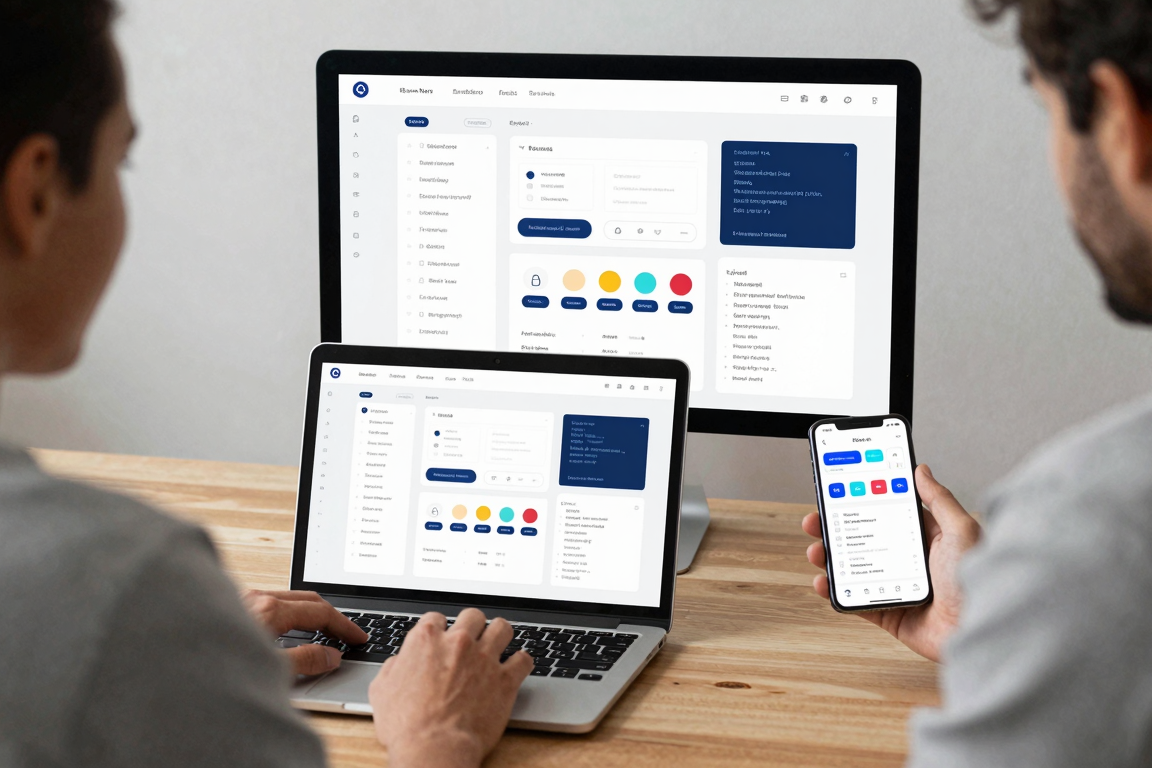
Design tokens make React Native interfaces feel smoother by giving color, spacing, typography, radius, and elevation decisions one shared source of truth. A design token is a named design value, such as color.primary, space.4, or radius.lg, that can be reused across screens and components.
Tokens matter because mobile polish is usually cumulative. One spacing mismatch does not ruin an app. Fifty spacing mismatches make the product feel unfinished. One hand-tuned color is harmless. Ten slightly different grays make the interface harder to scan. One custom text style is fine. A dozen untracked text styles make hierarchy feel accidental.
Design tokens also reduce decision fatigue for developers. Instead of asking, “Is this 14, 15, or 16 pixels?” the component asks, “Is this body, caption, or label?” Instead of hand-adjusting every card, the system provides a small set of spacing and radius choices.
That consistency affects performance indirectly. A cleaner token system reduces layout churn, reduces component variants, and reduces the number of edge cases that need conditional rendering. It also makes review faster. Designers, developers, and founders can discuss product intent rather than arguing about one-off style values.
This is especially relevant in a design-to-code workflow. Plainly defined: design-to-code is the process of translating product design decisions into implementation-ready code. A weak design-to-code workflow exports pixels. A stronger one exports structure: components, tokens, types, and screen composition that developers can reason about.
Why should you review UI on a real device before optimizing code?
You should review UI on a real device because mobile sluggishness often appears in touch, scale, motion, and context before it shows up in a desktop preview. A laptop canvas can hide spacing problems, thumb-reach issues, dense layouts, and awkward loading states.
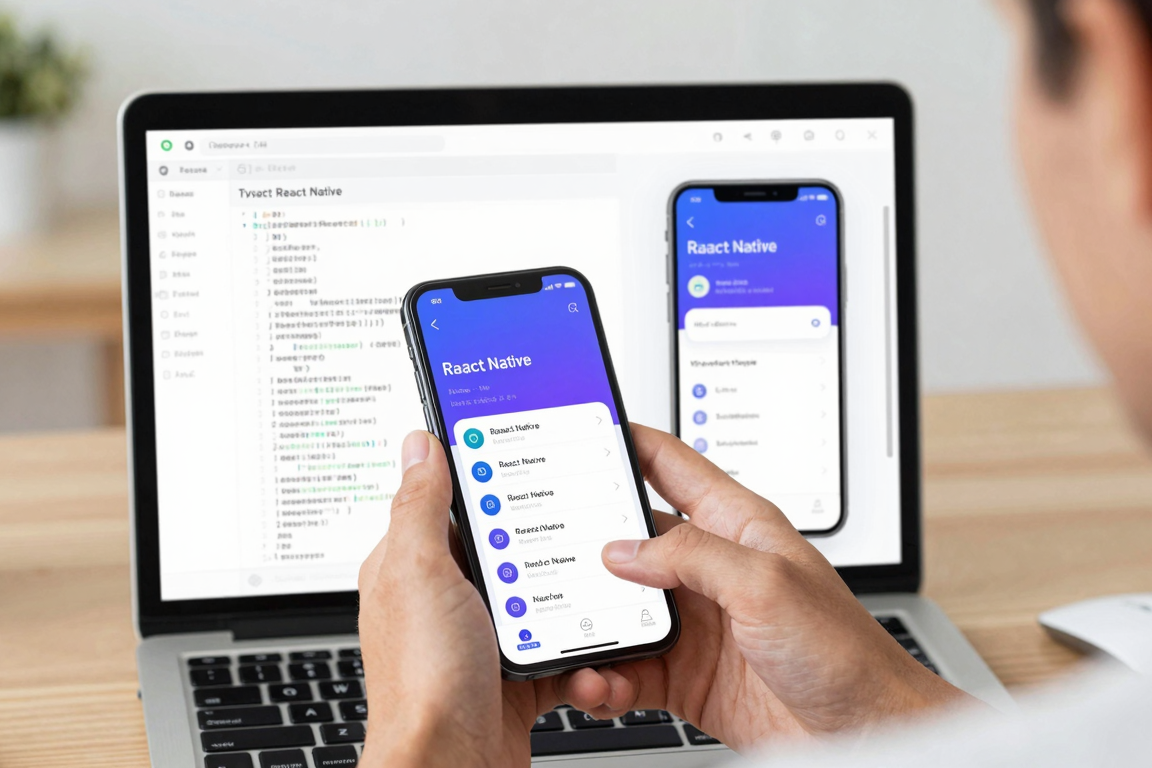
Expo makes this kind of review practical. The official Expo start-developing guide explains that after running npx expo start, you see a QR code in the terminal and can scan it to open the app on your device. That is not a substitute for release-build profiling, but it is a fast way to notice whether the interface feels coherent on the device where people will actually use it.
React Native’s own docs are clear that development mode adds overhead and that performance should be tested in release builds. That point matters: do not confuse a development-build slowdown with a production issue. Still, do not use that warning as an excuse to delay device review. You can learn different things at different stages.
Early device review answers product questions: does this screen feel understandable, reachable, and consistent? Release profiling answers engineering questions: where is the app doing too much work, dropping frames, or blocking the JavaScript thread?
Both are necessary. The sequencing is the mistake. Teams often wait until late QA to discover that the interface feels heavy because components were never standardized. By then, performance tuning becomes a cleanup project instead of a normal part of product development.
How does React Native’s New Architecture change the conversation?
React Native’s New Architecture raises the bar for mobile UI quality, but it does not remove the need for clean product structure. The official React Native architecture docs describe the New Architecture as a redesign of core internals that has been available experimentally since React Native 0.68 and proven at scale in Meta production apps.
Expo’s New Architecture guide is even more concrete for current projects: SDK 55 and later run entirely on the New Architecture, SDK 54 is the last Expo SDK where it can be disabled, and about 83% of SDK 54 projects built with EAS Build were using the New Architecture as of January 2026.
Plainly defined: React Native’s New Architecture is a refactor of the framework internals, including how rendering and native communication work. It can unlock better capabilities, but it does not automatically make a poorly structured UI feel designed.
That distinction protects your roadmap. If a team says, “The New Architecture will fix our app,” ask what “fix” means. It may help with framework-level constraints, native interoperability, and modern React Native capabilities. It will not decide your component boundaries, define your design tokens, clean up your TypeScript props, or make five inconsistent forms behave as one system.
The practical move is to align architecture decisions with UI system decisions. If you are modernizing React Native, modernize the component model too. If you are adopting Expo and TypeScript, treat the design system as part of the engineering surface, not as decoration.
How can a structured design-to-code workflow prevent sluggish UI debt?
A structured design-to-code workflow prevents sluggish UI debt by forcing product, data, design, screen, and export decisions to happen in order. This is where Dolfy’s 5-step Design OS is relevant: Product Definition, Data Model, Design Foundation, Screen Design, and Export.
The sequence matters. Product Definition clarifies what the app is for before screens multiply. Data Model defines the objects and relationships the UI must represent. Design Foundation establishes tokens, visual rules, and reusable patterns. Screen Design applies those rules to real flows. Export then produces production-ready React Native/Tailwind components with TypeScript types, design tokens, plus Expo Go QR and Web Preview.
That workflow does not claim to measure runtime performance or automatically fix bottlenecks. It solves an earlier problem: preventing the UI from becoming structurally vague before developers begin implementation.
For a solo founder, this can reduce the gap between “I have an idea” and “I have a professional app design I can build.” For a React Native developer, it can make the export more useful because the code reflects a system instead of a mood board. For a small startup team, it creates a shared language across product, design, and engineering.
This is also where Tailwind CSS and TypeScript become more powerful. Tailwind gives the team a compact styling language. TypeScript gives components a contract. Design tokens give visual choices names. React Native gives the cross-platform runtime. Expo gives a fast preview loop. The value is not any single tool; it is the alignment between them.
What should you fix first when your React Native app feels sluggish?
Fix the highest-leverage UI system problem before tuning isolated code paths. Start by auditing components, tokens, screen patterns, and device behavior. Runtime profiling is still necessary, but it should not be the only lens.
A practical audit can be simple:
- List every button, input, card, modal, list item, and empty state in the app.
- Group duplicates and near-duplicates.
- Identify which variants are intentional and which are accidental.
- Name the design tokens that should control spacing, color, typography, radius, and elevation.
- Tighten TypeScript props so unsupported component states become harder to create.
- Test the key flows on a real device with Expo or your preferred release workflow.
- Profile release builds for true runtime bottlenecks after the UI structure is coherent.
This order keeps the team honest. If the app still drops frames after the UI system is cleaned up, you have a clearer engineering problem to investigate. If the app suddenly feels calmer and easier to navigate, you have fixed a real product issue without pretending it was only a frame-rate problem.
FAQ
Are React Native UI components the same thing as a design system?
No. React Native UI components are the implemented building blocks, while a design system also includes the rules behind them: tokens, variants, usage guidance, interaction states, and naming conventions.
Can design tokens improve actual app performance?
Not directly in the way a profiler measures JavaScript or native work. Design tokens improve consistency and reduce UI complexity, which can indirectly reduce unnecessary variants, layout exceptions, and maintenance overhead.
Should I optimize React Native performance in development mode?
Use development mode to catch issues and iterate, but do not make final performance judgments there. React Native’s performance docs state that JavaScript thread performance suffers in development mode and recommend testing performance in release builds.
Is Expo only useful for prototypes?
No. Expo supports a practical development and preview workflow, including QR-code device opening during development. For this article’s context, the important point is that fast device review helps teams catch UI feel problems earlier.
Conclusion: how do you make React Native feel faster before it becomes a rebuild?
You make React Native feel faster by treating UI structure as product infrastructure, not polish applied at the end. Strong React Native UI components, clear design tokens, TypeScript contracts, and real-device review help prevent the small inconsistencies that make an app feel sluggish long before a profiler tells you where runtime work is going.
If you are starting a mobile app or trying to clean up an MVP before it hardens into technical debt, use the design-to-code step as a forcing function. Define the product, model the data, establish the design foundation, compose the screens, and only then export code the team can maintain. That is the practical path Dolfy supports. You can explore it at dolfy.ai when you are ready to turn an app idea into a more coherent React Native foundation.